
Every email you receive contains various lines of metadata, known as headers, that provide information about the email's journey from sender to recipient. These headers include details such as the date and time the email was sent, the software and devices used to send and receive the email, and the internet protocols involved in the transmission. By default, this information is not visible to the user, but it can be accessed by viewing the email's raw source code.
To view the full message headers of an email, you can log in to webmail and select or highlight the email you wish to view the headers for.
- Double-click the email to open it in a separate window.
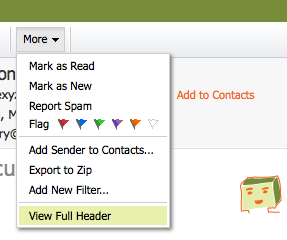
- You can then click the More▼ drop-down.
- Click the View Full Header link, located in the upper right corner of the window. To hide the header, click the Hide Header link.
Looking at an Email Header
The email header will show some important characteristics, including perhaps the most important part of an email - this is the KEY:VALUE pairs contained in the header. Looking at the below image, you can tell some of the KEY:VALUE pairs used.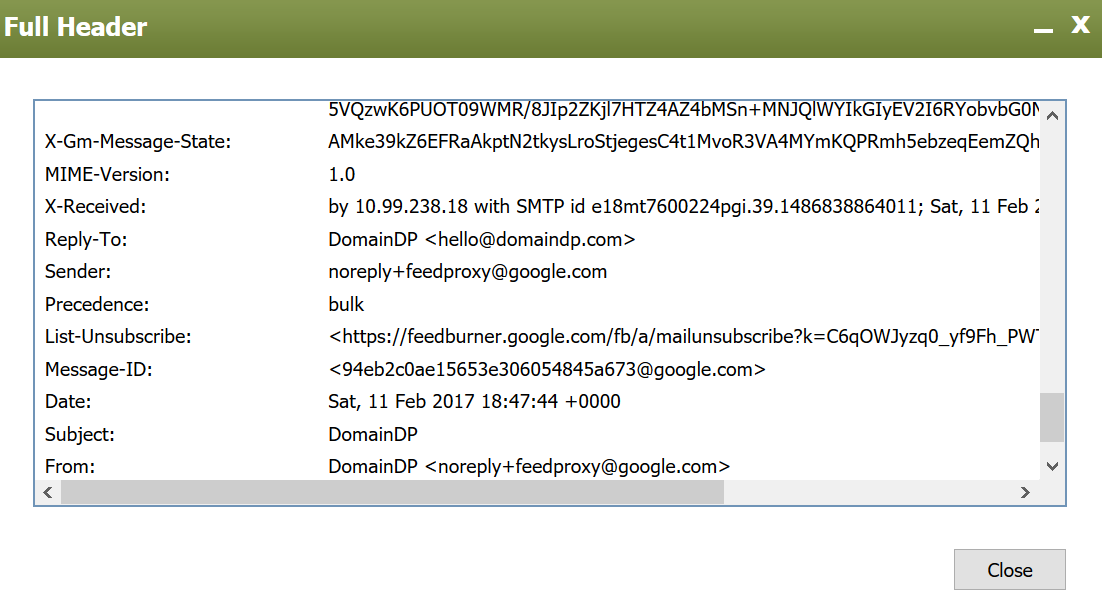
Here are some of the more commonly used headers, and their values:
- From: sender's name and email address (IP address here also, but hidden)
- To: recipient's name and email address
- Date: sent date/time of the email
- Subject: whatever text the sender entered in the Subject heading before sending
