
Optimizing your email management just got easier. For those using Hotmail.com, Live.com, or Outlook.com, you can now seamlessly forward your emails to your Thexyz account. This not only streamlines your email experience but also enhances the security and features available to you. Follow the steps below to set this up. Do note that these instructions pertain to the current user interface of Outlook.com, which is subject to change.
Step-by-Step Guide:
-
Accessing Settings:
- Sign in to your Outlook.com (Live.com or Hotmail.com) account.
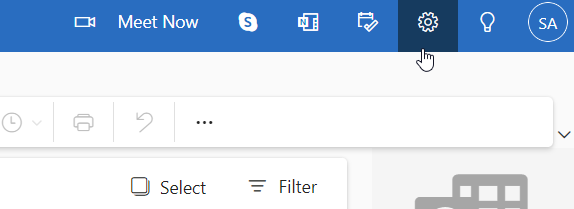
- Click on the "gear" icon, which is situated at the top right corner.
-
Redirecting to Email Forwarding Options:
- From the emerging dropdown, opt for "Options."
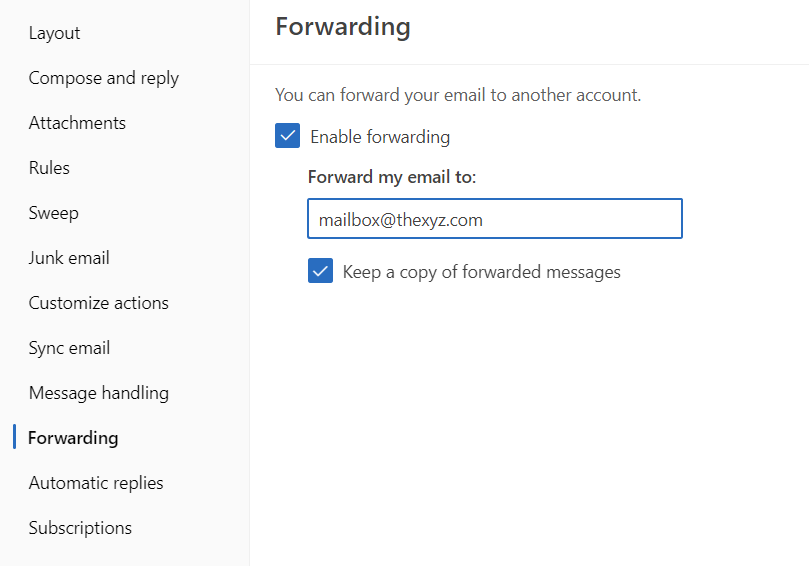
- Progress to the "Email forwarding" selection within the Options page.
-
Initiating Email Forwarding to Thexyz:
- Within the "Email forwarding" segment:
- A) Activate the "Forward your mail to another email account" choice.
- B) In the designated area "Where do you want your messages to be sent?", fill in your Thexyz email address.
- C) Optional: To maintain copies of the emails you forward within your Outlook.com inbox, select "Keep a copy of forwarded messages in your Outlook.com inbox." If utilizing Thexyz's Archiving capability, rest assured as all emails, both inbound and outbound, are automatically archived. D) Finalize your setup by clicking 'Save'.
Integrating your Outlook.com emails with Thexyz not only offers a consolidated inbox but also leverages the power of Thexyz's superior email solutions for better productivity and security. Should you need more guidance or assistance, we're here to help.
