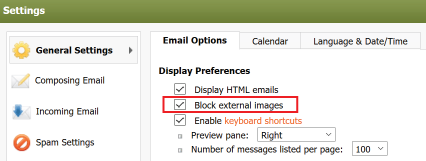
When a user receives an email with links to externally hosted images or tracking pixels, those images will not be displayed immediately. Instead, a bar will show up at the top of the email to indicate that images are being blocked. The user can click "Show Images" or "Always show images for this sender" to display the images.

This is important because users may not realize that even if they delete an email without responding, they may still be sending information to third parties. Some messages contain links to images hosted on a separate server from their email. To display one of these images, their email client makes a request to the image server. This request includes their IP address, browser version, and any cookies the image server has set. Taken together, the server can use this information to track their online behavior. This is common practice, but we think users should have a choice about who can collect their information. That's why we've implemented protection against external image tracking in Webmail.
Can I turn this feature on or off?
Yes. By default the feature is turned on but you can turn it off by following these directions:
- In the Settings dialog box, click General Settings.
- On the Email Options tab, clear the Block external images check box.
- Click Save.