
Application Passwords allow you to securely connect third-party email applications (such as Outlook, Apple Mail, Thunderbird, or mobile mail apps) to your Thexyz mailbox without sharing your main account password.
App passwords are especially useful when:
-
You want added security
-
You use multiple devices
-
Two-factor authentication (2FA) is enabled
-
You want to revoke access without changing your main password
Accessing Webmail
To access Thexyz Webmail:
Log in using your full email address and mailbox password.
Opening Application Password Settings
-
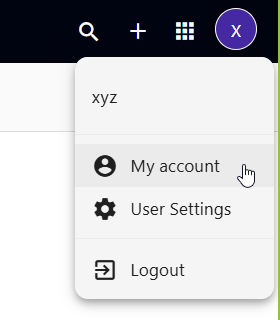
After logging in, click your profile icon (top-right corner)
-
Click My Account
-
From the left sidebar, click Application Passwords
You will see a list of existing app passwords (if any).
Creating or Updating an Application Password
-
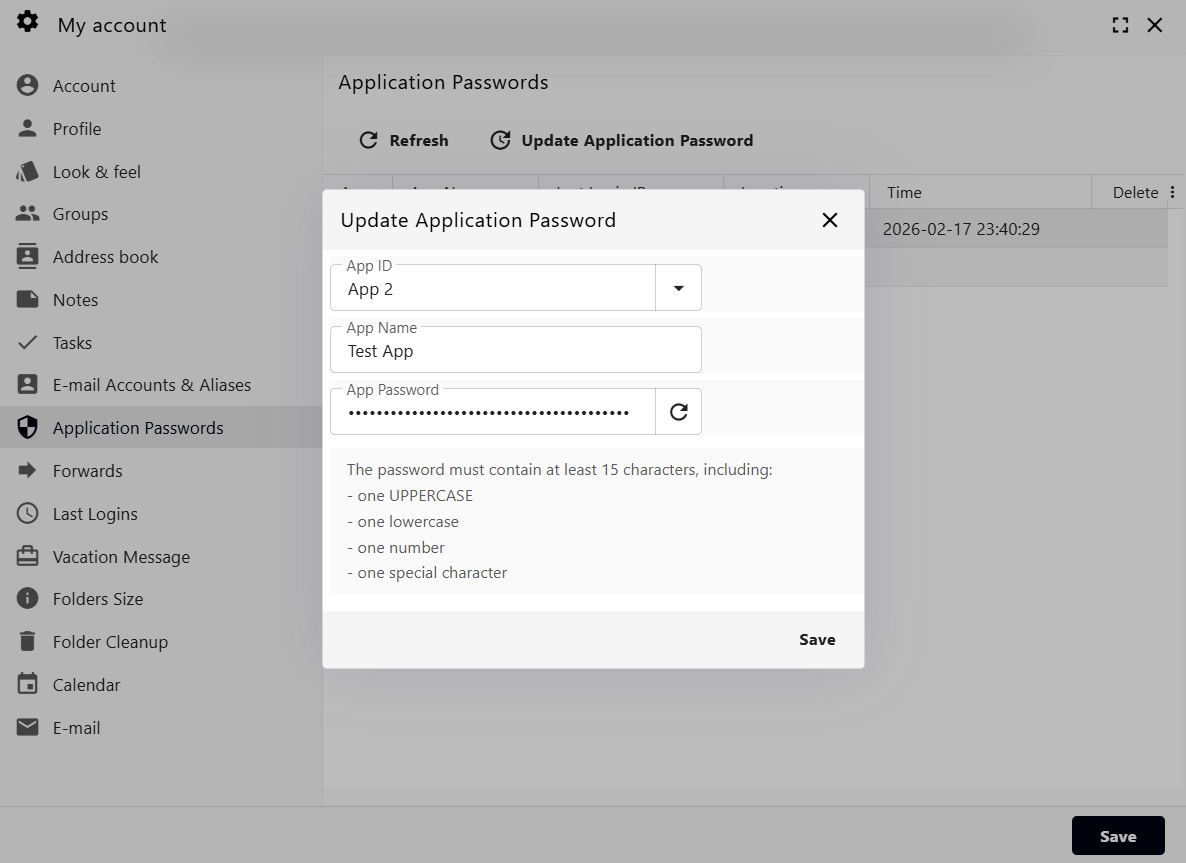
Click Update Application Password (or create a new one)
-
Select an App ID
-
Enter an App Name (example: iPhone Mail, Outlook Desktop, MacBook Thunderbird)
-
Generate or enter a password
-
Click Save
Below is an example of the Application Password screen:
Application Password Requirements
Your application password must contain:
-
Minimum 15 characters
-
At least one uppercase letter
-
At least one lowercase letter
-
At least one number
-
At least one special character
For example:
How to Use an Application Password
When setting up your mailbox in an email app:
-
Enter your full email address
-
Use your Application Password instead of your regular mailbox password
-
Use the standard Thexyz mail server settings
If the app asks for a password, always use the generated app password — not your main login password.
Why Use App Passwords?
✔ Keeps your main password private
✔ Allows device-specific access
✔ Easy to revoke access for one device
✔ Recommended when using multiple devices
✔ Required if 2FA is enabled
Revoking an Application Password
If you lose a device or no longer want it to access your mailbox:
-
Go to My Account
-
Click Application Passwords
-
Delete or update the app password
-
Click Save
The connected device will immediately lose access.
Best Practices
-
Create one app password per device
-
Name each app clearly (example: “Office PC Outlook”)
-
Do not reuse your main mailbox password
-
Delete unused app passwords
-
Use strong, randomly generated passwords
Troubleshooting
If your mail app cannot connect:
-
Confirm you used the app password (not your regular password)
-
Verify the password meets complexity requirements
-
Ensure your internet connection is active
-
Try deleting and recreating the app password
